

Wiki & Guides
Windrose
Pirate Survival · Co-op · Kraken Express · Kraken Express, Pocketpair Publishing
Transferring your Windrose save to the server
Move a solo or hosted world to your Windrose dedicated server: RocksDB save location, folder structure, WorldIslandId and how to back up correctly.
Last updated July 16, 2026 · RespawnHost
On this page
Moving a solo or hosted world to the dedicated server
Played solo or as host and now want your world on a dedicated server so it stays online permanently? You do it by copying files — you transfer the entire RocksDB world folder.
Warning
Windrose stores the world as a RocksDB database — that's a whole folder with many files, not a single .sav file. Always copy the complete folder, never individual files from it. Back up both first: your local save and the server save.
Where are the saves?
Local (your PC, Windows):
%LOCALAPPDATA%\R5\Saved\SaveProfiles\<Profile>\RocksDB\<Version>\Worlds\<World-ID>\<Profile> is usually your SteamID. The <World-ID> folder is your world.
On your RespawnHost server:
R5\Saved\SaveProfiles\Default\RocksDB\<Version>\Worlds\<World-ID>\Note
The folder name is build-dependent: depending on the Windrose version it's called RocksDB, RocksDB_v2 or similar (sometimes with a separate …_Backups folder). Before moving, check the actual folder name on both sides — they must match each side's game version.
Step by step
- Stop the server (in the panel). Never copy files while the server is running.
- Find your local world: open
%LOCALAPPDATA%\R5\Saved\SaveProfiles\…\Worlds\and identify your world folder (by modified date if you have several). - In the RespawnHost panel, open the File Manager (or connect via SFTP) and navigate to the corresponding
Worlds\folder on the server. - Back up the existing server world (rename or download it).
- Upload the complete local world folder into the server’s
Worlds\folder. - Check that the
WorldIslandIdinServerDescription.jsonandWorldDescription.jsonmatches and points to the uploaded world — otherwise the server won’t load it. - Start the server. Connect via invite code and confirm your world has loaded.
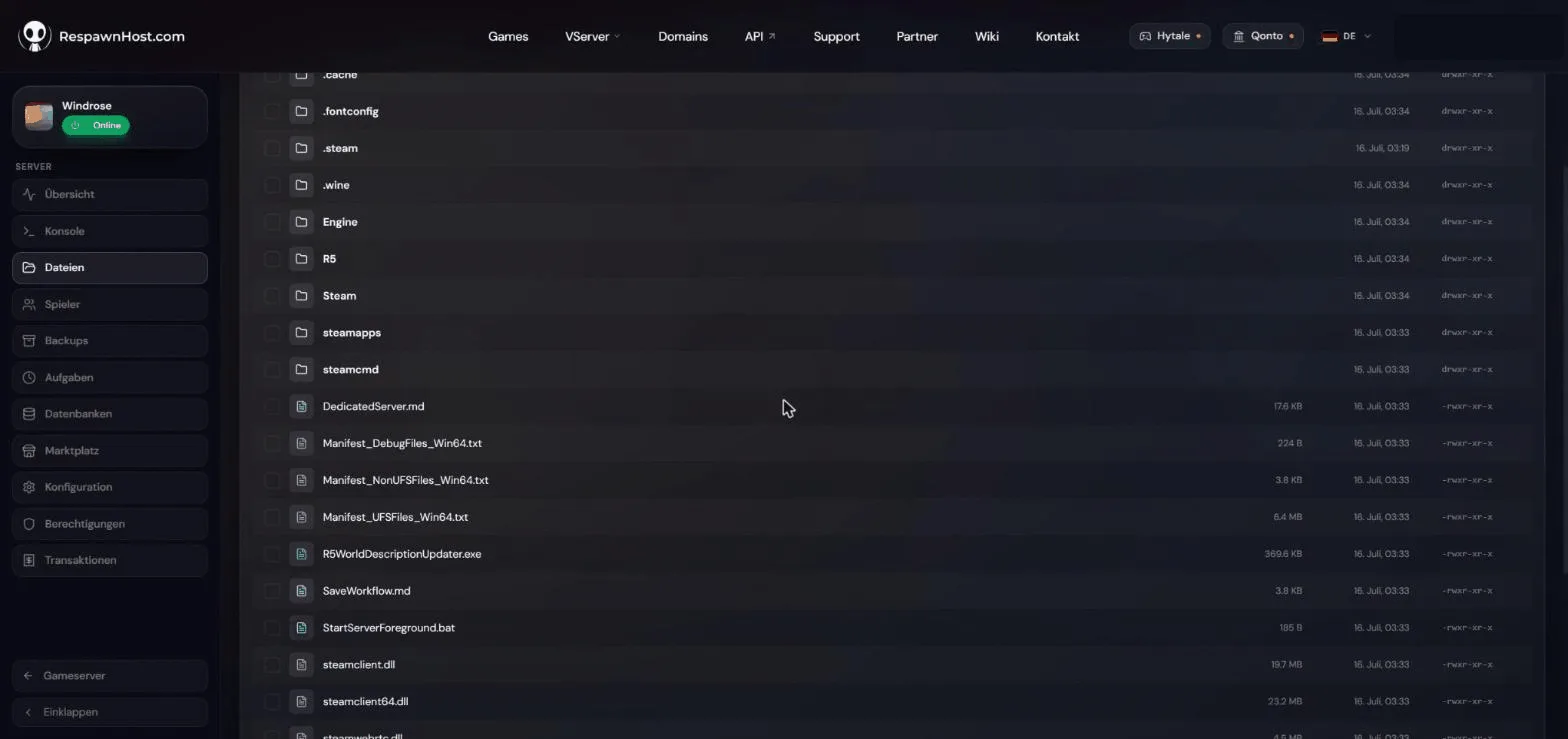
R5 folder contains Saved\…\Worlds\Server → server (e.g. from another host)
Same process, only simpler: download the complete world folder from the old server, upload it into the matching Worlds\ folder at RespawnHost, check WorldIslandId, start.
Frequently asked questions
Can I copy individual files out of the RocksDB folder? No. RocksDB is a single coherent database — only the complete folder makes a working world.
My world won’t load after the move — why?
Usually a mismatched WorldIslandId or the wrong RocksDB/RocksDB_v2 folder name for your game version. Double-check both. And always make sure server and client versions are identical.
Does my host character carry over? The server takes the world data (bases, ships, progress) from the RocksDB folder. Make sure server and game versions match so the world loads cleanly.
Related guides
Your own Windrose server?
At 3 hours a day that is about €4.54 a month. Billed by the second: server off, costs off.
- No subscription, no minimum term
- Balance does not expire while your account exists
- Online in under 90 seconds