

Wiki & Guides
Palworld
Survival · Monster Taming · Pocketpair
Updating Palworld to 1.0: Server Update in 5 Minutes
Update your Palworld server to 1.0: automatic update on restart, optional fresh world start, back up your world first (panel or SFTP), crossplay & RAM notes.
Last updated July 16, 2026 · RespawnHost
On this page
Palworld 1.0: how to bring your server up to date
Palworld 1.0 has been live since July 10, 2026 – with an explorable World Tree, Sky Islands, 70+ new Pals and full crossplay. Your RespawnHost server pulls the update automatically on the next restart. Still, a clean process is worth it, especially because of the reworked world.
First: back up
Before updating, back up your world folder. There is no forced wipe with 1.0, but a backup costs nothing and saves you if you later want a fresh world start.
Way 1: update via the panel (standard)
- Open your server in the panel → Console or Overview.
- If the server is running: Stop it.
- Start it – on startup the system automatically loads the latest Palworld version. Done.
That’s all. The update is applied server-side; you don’t need to upload any files.
Way 2: back up your world via SFTP first
To be safe, download your world folder before the update:
- Connect via SFTP (credentials in the panel under “SFTP access”).
- Navigate to
Pal/Saved/SaveGames/0/and download the entire world folder. It has a random name matching theDedicatedServerNameinPal/Saved/Config/LinuxServer/GameUserSettings.ini. - Inside are
Level.sav,LevelMeta.sav,WorldOption.sav,LocalData.savand thePlayers/folder – that’s your complete world.
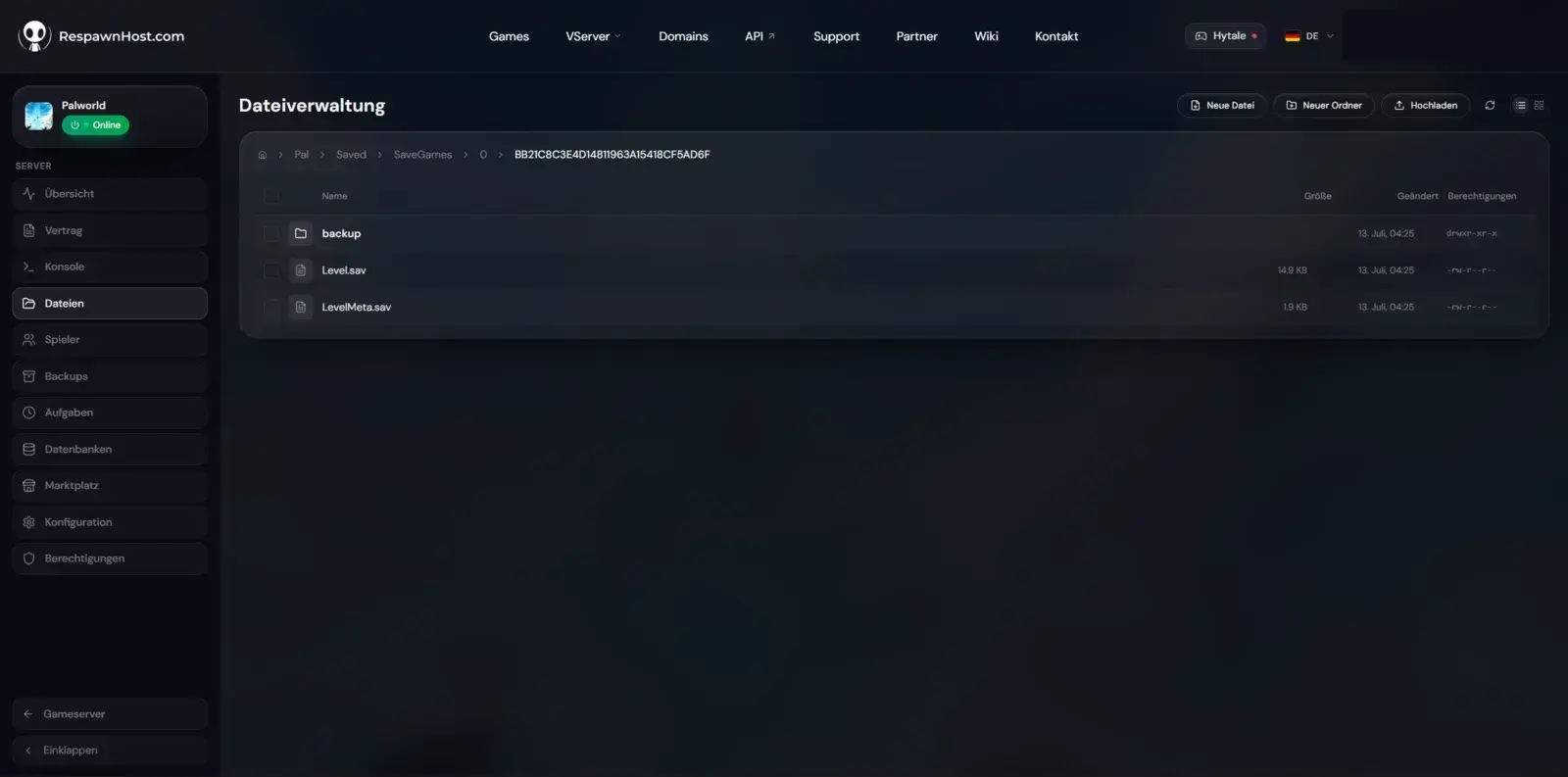
Level.sav, meta files and Players/Optional fresh world start (Pocketpair recommendation)
1.0 reworks progression from early game to endgame. Pocketpair therefore recommends a fresh world start for the best experience – it’s not mandatory.
To do it cleanly:
- Back up the world folder via SFTP as above.
- Stop the server.
- Rename the existing world folder under
Pal/Saved/SaveGames/0/(e.g. append_old) or delete it. - Start the server – Palworld creates a new world automatically.
Note
Without this step your existing world simply continues on 1.0. The fresh start is optional and only for the full 1.0 effect.
Crossplay after the update
From 1.0, dedicated servers support full crossplay across Steam, Xbox, PlayStation 5 and Mac – enabled by default at RespawnHost. Important for joining:
- PC (Steam): directly via IP:port using “Join” in the multiplayer menu.
- Xbox & PS5: via the in-game community browser – consoles cannot connect by IP. So pick a memorable server name so your friends can find you there.
Details in the crossplay guide.
RAM after the update
The larger 1.0 world needs more RAM. For 2-4 players 8 GB is enough to start, for groups and mods we recommend 16 GB, for large guilds 24-32 GB. If your server fills up or stutters, you can upgrade in the panel any time without data loss – details in How much RAM?.
FAQ
Do I have to update manually? No. A restart in the panel is enough – the update is applied automatically.
Do I lose my progress? No, unless you deliberately clear the world folder for a fresh start. Back up first anyway.
Do I really need more RAM? Only for larger groups or mods. 8 GB is fine for small sessions.
No server yet? Rent a Palworld server – 1.0-ready, online in under 90 seconds.
Your own Palworld server?
At 3 hours a day that is about €6.90 a month. Billed by the second: server off, costs off.
- No subscription, no minimum term
- Balance does not expire while your account exists
- Online in under 90 seconds