Wiki & Guides
Valheim
Survival · Viking · Iron Gate Studio · Coffee Stain Publishing
Transferring a Valheim World to Your Server
Move your local Valheim world to a dedicated server: save locations (.db/.fwl), matching the world name, why there's no host-character problem, and server-to-server.
Last updated July 15, 2026 · RespawnHost
On this page
Moving a local world to a dedicated server
You built a world together at home and now want it on a 24/7 server? In Valheim that’s pleasantly simple — it’s just two files. And unlike some other survival games, there’s no host-character problem involved.
Warning
Create backups first — of your local world and the server save. Only copy files while the server is stopped.
Where is your local world?
On the host’s PC (Windows):
%USERPROFILE%\AppData\LocalLow\IronGate\Valheim\worlds_local\Each world has two core files: <worldname>.db (the actual world data) and <worldname>.fwl (header/metadata incl. seed). There are often .db.old/.fwl.old rolling backups too. Both core files belong together — always take .db and .fwl.
Note
The current folder is worlds_local (since the 2022 cloud-save rework). Older guides still mention worlds/ — that's outdated.
Why there’s no host-character problem
Valheim stores characters separately from worlds and, by default, locally with each player (under characters_local\<name>.fch). So when you move, you only transfer the world — every player simply brings their own character, skills and gear onto the server. Nothing to convert, no “lost host character” like in, say, Palworld.
Step by step
- Stop the server in the panel.
- Open the file manager (or SFTP) and navigate to your server’s worlds folder (
worlds_local). - Back up the files already there (download or rename).
- Upload your local
<worldname>.dband<worldname>.fwl. With FTP, transfer in binary mode. - In the startup variables, set the world name to exactly that file name (without extension). If the name doesn’t match, the server silently starts a new, empty world and leaves your files untouched — the most common mistake.
- Start the server — your world should load.
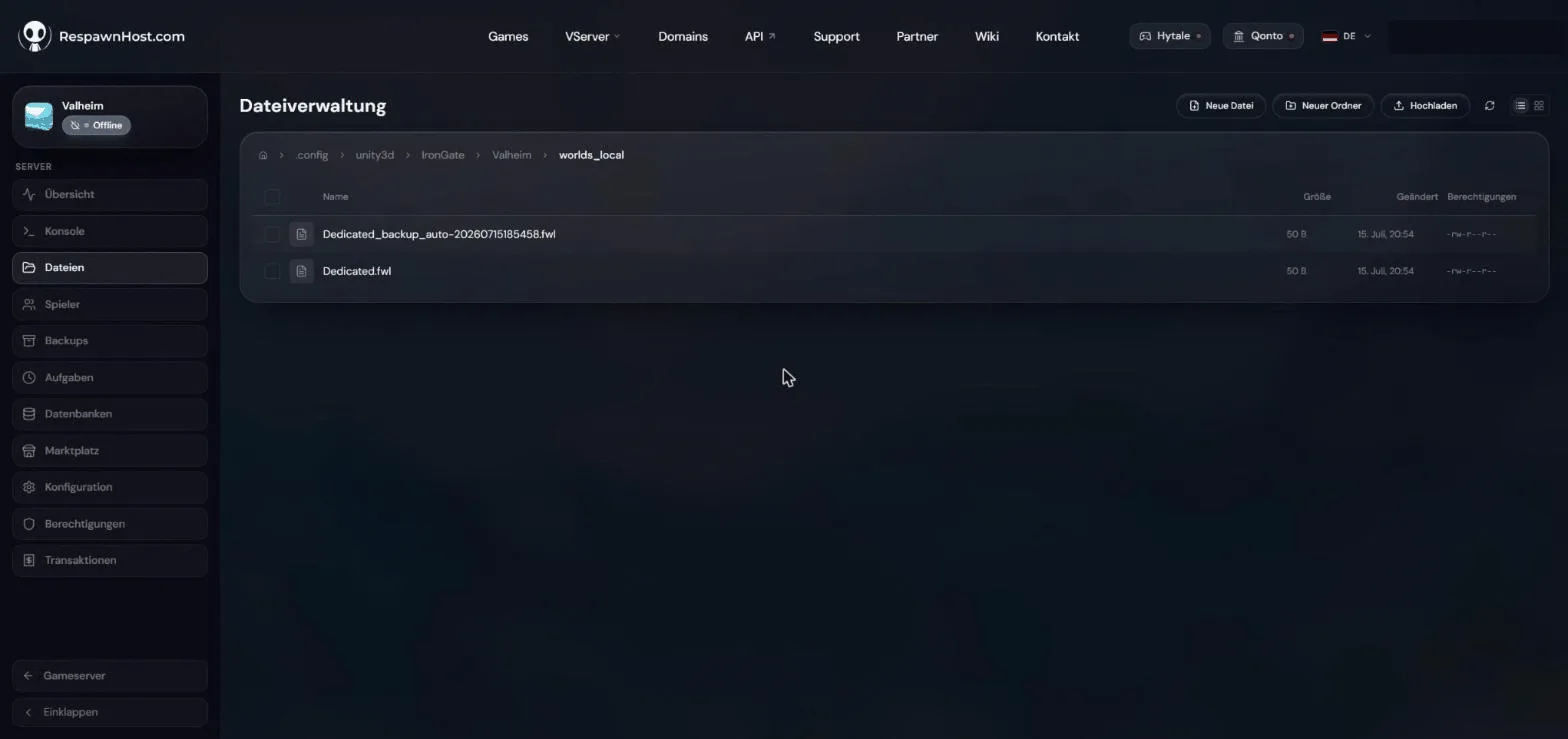
worlds_local folder on the server — this is where you upload your .db and .fwlServer → server (moving from another host)
Same process, without the detour via your PC: download <worldname>.db and .fwl from the old server’s worlds_local folder, upload them at RespawnHost and match the world name in the startup variables. There are no format differences between hosts.
FAQ
The server created an empty world — what went wrong? Almost always the world name in the startup variables doesn’t match the file name. Match it exactly (mind capitalization) and restart the server.
Do I need to bring the .old files?
No, the core files .db and .fwl are enough. You can copy the .old backups for safety, but they aren’t required.
Do my friends bring their characters? Yes — characters live locally with each player. Everyone just connects with their usual character.
Related guides
- Renting & setting up a server
- Configuring your server — world name & backups
- Setting up crossplay
No server yet? Rent a Valheim server — online in under 90 seconds.
Your own Valheim server?
At 3 hours a day that is about €2.27 a month. Billed by the second: server off, costs off.
- No subscription, no minimum term
- Balance does not expire while your account exists
- Online in under 90 seconds