Wiki & Guides
Hytale
Sandbox · Adventure · Hypixel Studios
Managing Your Hytale World and Exploring Orbis
Orbis zones, biomes, world generation and backup strategies for your Hytale server.
Last updated April 21, 2026 · RespawnHost
On this page
- The World of Orbis
- Orbis Zones
- Zone 1: Emerald Grove
- Zone 2: Howling Sands
- Zone 3: Borea
- Zone 4: Devastated Lands
- World Generation
- Seeds
- Structures
- World Backups
- Scheduled Backups
- Manual Backups
- Restoring a Backup
- Downloading a Backup
- World Reset
- World Border
- Frequently Asked Questions
- How large is an Orbis world?
- Can I generate a specific zone near spawn?
- Do backups include mods and configuration?
- How often should I back up my world?
- Can I upload a custom world?
The World of Orbis
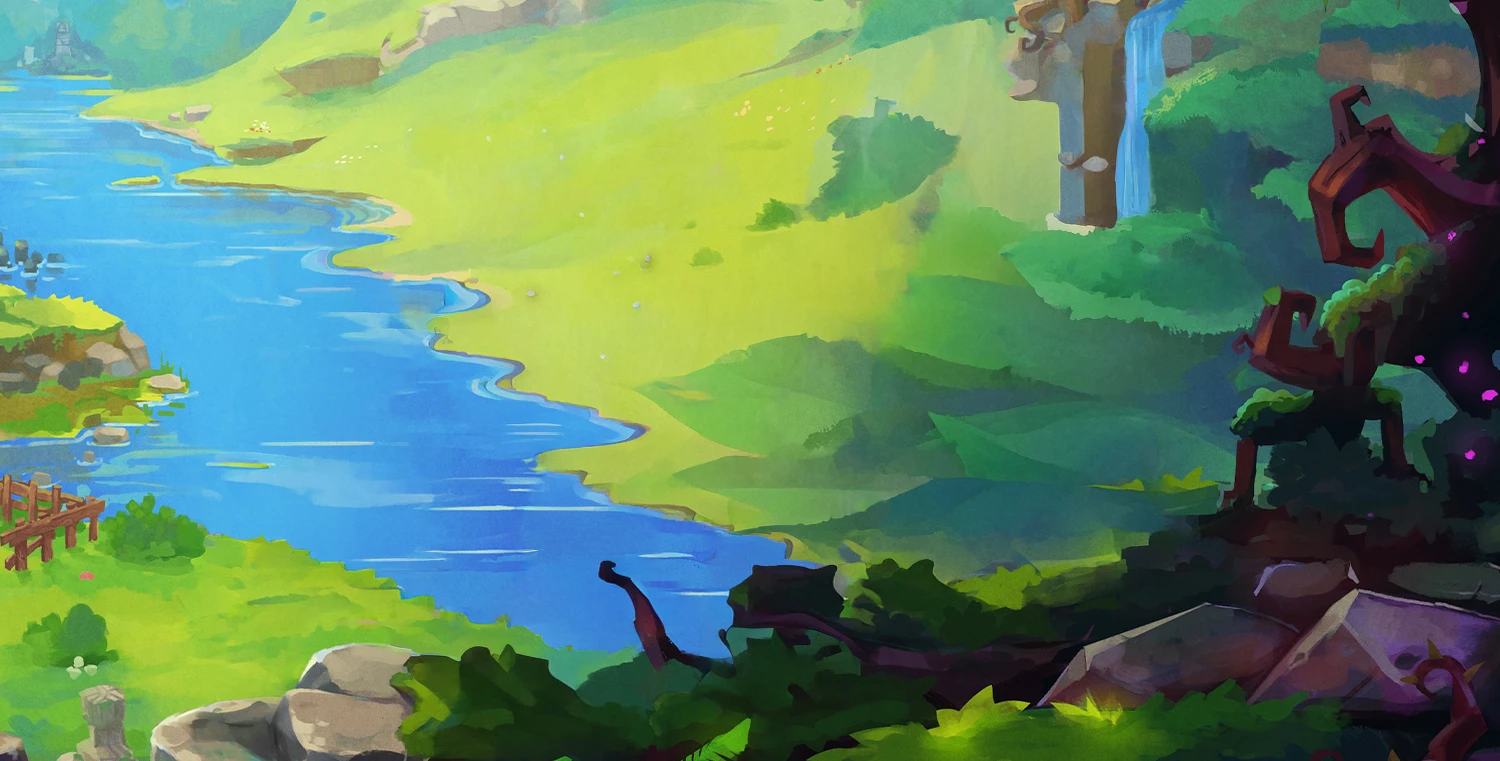
Hytale’s world is called Orbis — a diverse planet divided into distinct zones, each with unique biomes, creatures, and challenges. Understanding Orbis helps you configure your server and guide your players.
Orbis Zones
Orbis consists of four primary zones arranged in a ring around a central area. Each zone has a different theme, difficulty level, and set of inhabitants.
Zone 1: Emerald Grove
The starting zone and the most welcoming area of Orbis.
- Theme: Temperate forests, meadows, and gentle hills
- Difficulty: Low — ideal for new players
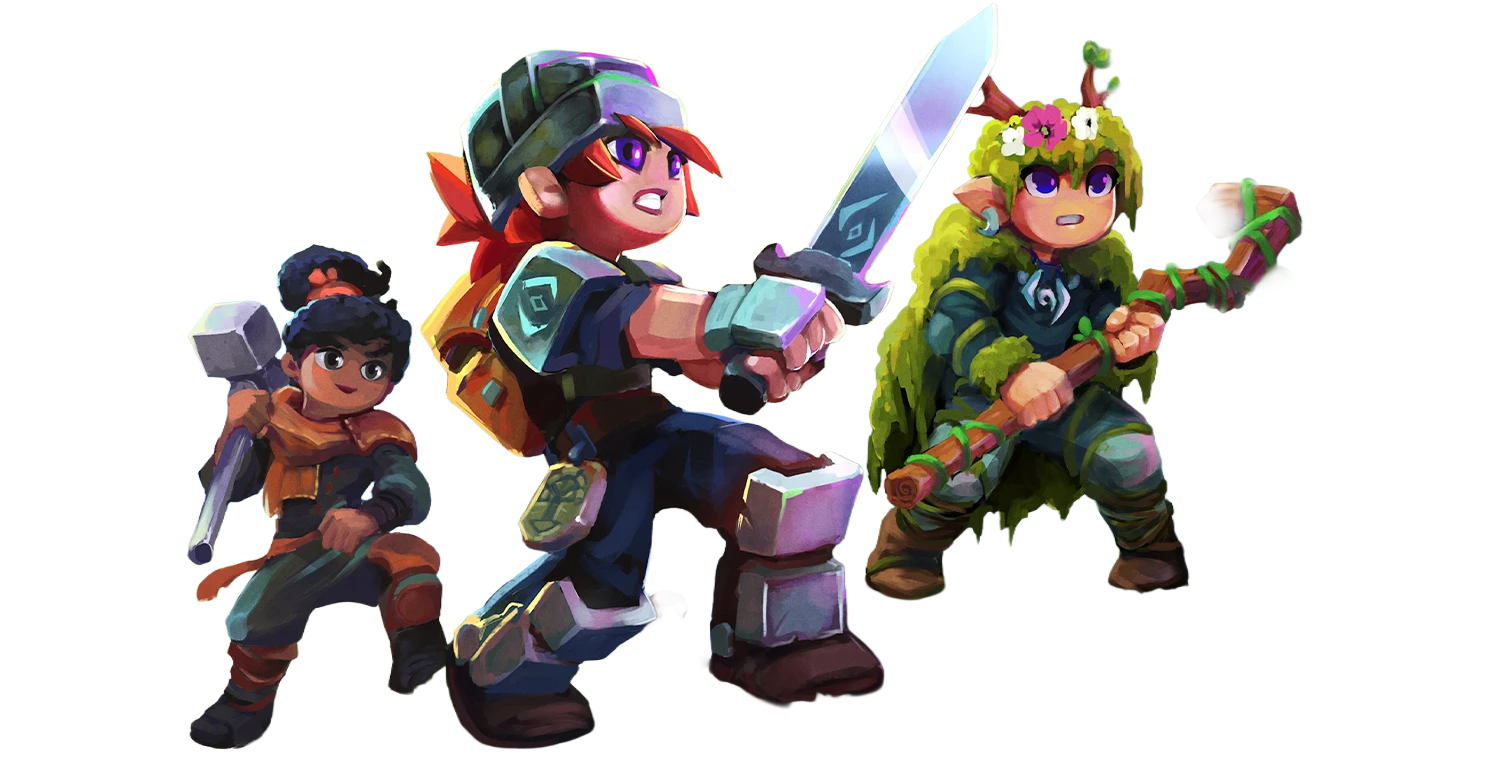
- Inhabitants: Kweebecs (friendly small creatures)
- Enemies: Trork scouts and wildlife
- Resources: Basic building materials, common ores, farmland
- Landmarks: Kweebec villages, ancient ruins, peaceful rivers
The Emerald Grove is where most players begin their adventure. It provides safe areas for building and introductory combat encounters.
Zone 2: Howling Sands
A vast desert region with hidden dangers beneath the sand.
- Theme: Desert, canyons, and ancient tombs
- Difficulty: Medium
- Enemies: Desert-dwelling Trorks, sand creatures, tomb guardians
- Resources: Rare minerals, ancient artifacts, sandstone
- Landmarks: Buried temples, oasis settlements, canyon networks
The Howling Sands introduces more challenging combat and exploration puzzles. Dungeons here are more complex than in the Emerald Grove.
Zone 3: Borea
A frozen northern zone with harsh conditions and powerful foes.
- Theme: Tundra, ice caves, frozen mountains
- Difficulty: High
- Enemies: Ice elementals, armored Trorks, frost creatures
- Resources: Rare ores, enchanted materials, ice blocks
- Landmarks: Frozen fortresses, glacial caverns, mountain peaks
Borea demands better equipment and preparation. The cold environment adds survival challenges.
Zone 4: Devastated Lands
A corrupted wasteland — the most dangerous zone in Orbis.
- Theme: Volcanic terrain, corruption, desolation
- Difficulty: Very High
- Enemies: Corrupted creatures, powerful bosses, Trork warlords
- Resources: Endgame materials, legendary crafting components
- Landmarks: Trork strongholds, corruption pits, boss arenas
The Devastated Lands are intended for experienced players with top-tier equipment. This zone contains the hardest dungeons and boss encounters.
World Generation
Seeds
World generation in Hytale is controlled by seeds — numeric or text values that determine terrain layout:
world-seed=my-awesome-world- Leave the seed empty for a random world.
- Using the same seed always generates the same terrain layout.
- Seeds do not affect mob spawns, player builds, or loot — only terrain and biome placement.
To find a good seed, generate test worlds and explore the area around spawn. Once you find terrain you like, record the seed.
Structures
Hytale generates various structures across all zones:
| Structure | Zone | Description |
|---|---|---|
| Kweebec Village | Emerald Grove | Small settlements with NPCs and trading |
| Trork Camp | All zones | Enemy encampments with loot |
| Dungeon | All zones | Instanced combat challenges with rewards |
| Temple | Howling Sands | Puzzle-based exploration sites |
| Fortress | Borea | Large fortified structures |
| Stronghold | Devastated Lands | Endgame raid content |
Control structure generation with the server config:
generate-structures=trueDisabling structures removes dungeons and generated buildings but does not affect terrain.
World Backups
Regular backups protect your community’s progress. RespawnHost provides multiple backup options:
Scheduled Backups
The panel supports opt-in scheduled backups. Enable and configure them as follows:
- Open your server in the panel.
- Go to Backups.
- Enable scheduled backups and set the interval (recommended: every 6-12 hours).
- Set the number of backups to retain (recommended: 7-14).
Backups are not enabled by default. You must opt in to create automatic backup schedules.
Manual Backups
Create a backup at any time:
- Go to Backups in the panel.
- Click Create Backup.
- Wait for the backup to complete.
- The backup appears in the list with a timestamp.
Restoring a Backup
- Go to Backups in the panel.
- Find the backup you want to restore.
- Click Restore.
- Confirm the restoration. The server restarts with the selected world state.
Restoring a backup replaces the current world. Create a backup of the current state before restoring if you want to preserve it.
Downloading a Backup
You can download any backup to your local machine:
- Go to Backups.
- Click Download on the desired backup.
- Save the file locally.
This is useful for transferring worlds between servers or keeping an off-site copy.
World Reset
If you want to start fresh with a new world:
- Back up the current world — Always create a backup before resetting.
- Stop the server.
- Go to File Manager.
- Delete the world directory.
- Optionally set a new
world-seedin the configuration. - Start the server. A new world generates automatically.
World Border
Limit the playable area to control world size and RAM usage:
world-border-size=5000This sets a circular border with a 5,000-block radius from spawn. Players cannot move beyond the border. Set to 0 for an unlimited world.
A smaller world border reduces RAM usage by limiting the number of loaded chunks. This is useful for smaller servers or those with limited RAM. See RAM Requirements for details.
Frequently Asked Questions
How large is an Orbis world?
Worlds are effectively infinite within the constraints of server storage and RAM. In practice, most communities explore an area spanning several thousand blocks from spawn.
Can I generate a specific zone near spawn?
Zone placement is determined by the world seed. You cannot force a specific zone to appear at spawn through configuration. Test different seeds to find one with your preferred layout.
Do backups include mods and configuration?
Backups typically include the world data. Mod files and server configuration are managed separately through the File Manager.
How often should I back up my world?
For active servers, enabling scheduled backups every 6-12 hours is recommended. Create a manual backup before installing mods, changing configuration, or performing maintenance.
Can I upload a custom world?
Yes. Upload the world files through the File Manager or SFTP, making sure they are placed in the correct world directory. Restart the server to load the new world.
Your own Hytale server?
At 3 hours a day that is about €2.72 a month. Billed by the second: server off, costs off.
- No subscription, no minimum term
- Balance does not expire while your account exists
- Online in under 90 seconds