

Wiki & Guides
Palworld
Survival · Monster Taming · Pocketpair
Palworld Save Transfer to a Dedicated Server
Move an existing co-op world onto your Palworld server: where the save files sit, what to change in GameUserSettings.ini, and how to keep the host character from breaking.
Last updated July 10, 2026 · RespawnHost
On this page
Moving a co-op world to a dedicated server
You’ve been playing co-op with friends and want to move your world to a dedicated server? That works — via file copy. There is no official transfer feature (see below), but the manual route is very doable.
Warning
First, back up both — your local save and the server save.
Where are the saves?
Local (co-op host, Windows/Steam):
%LocalAppData%\Pal\Saved\SaveGames\<your-SteamID64>\<world-folder>\The world folder has a random hex name. Inside are Level.sav, LevelMeta.sav, WorldOption.sav, LocalData.sav and the Players/ folder.
On your RespawnHost server:
Pal/Saved/SaveGames/0/<DedicatedServerName>/The <DedicatedServerName> folder name is defined in Pal/Saved/Config/LinuxServer/GameUserSettings.ini — the two must match, otherwise the server won’t load the world.
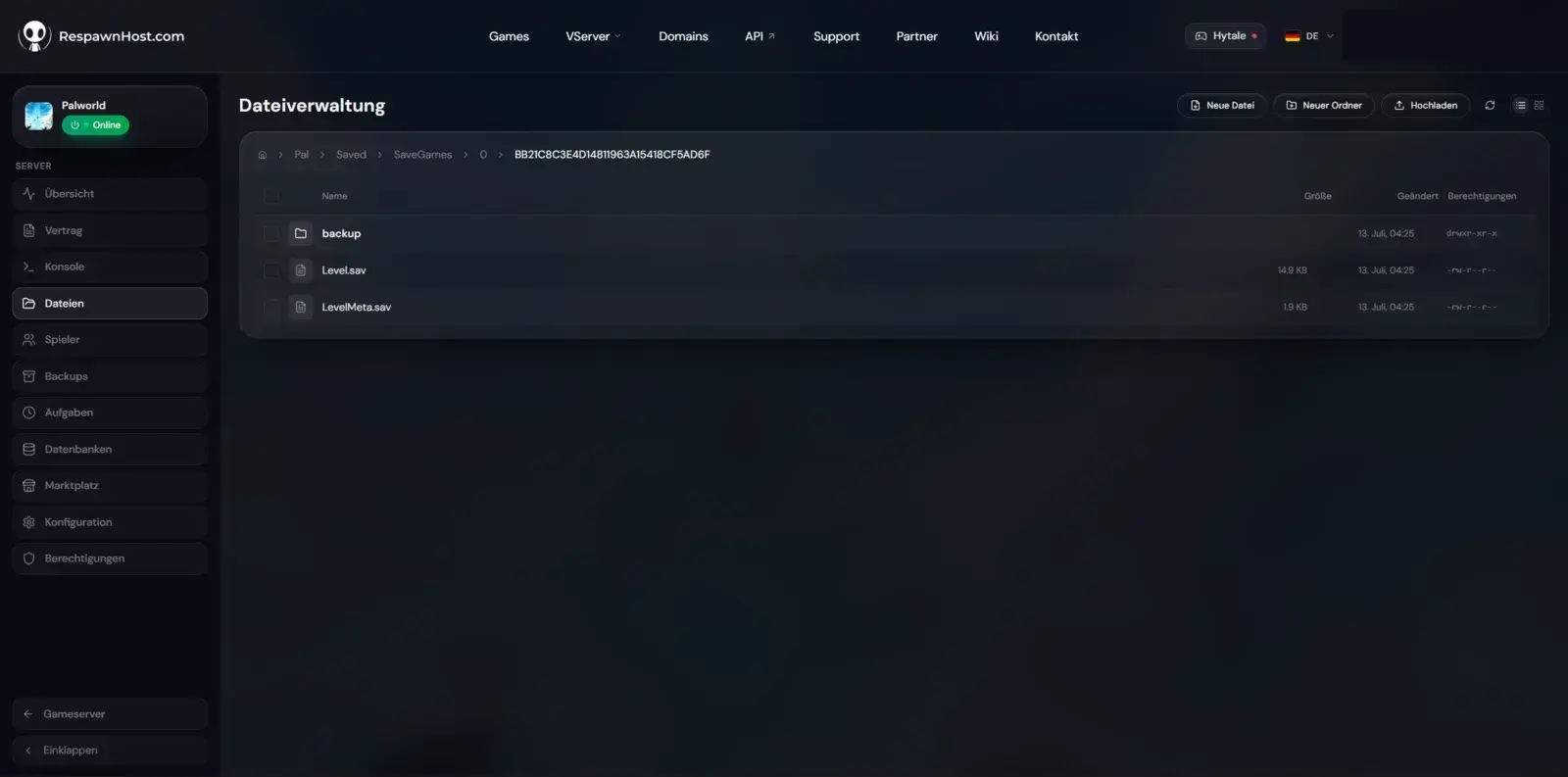
Level.sav, meta files and Players/Step by step
- Stop the server (in the panel). Never copy files while the server is running.
- Open the file manager in the panel (or SFTP) and navigate to
Pal/Saved/SaveGames/0/. - Back up the existing server world folder (rename or download it).
- Upload the entire contents of your local world folder into the server world folder (
Level.sav,LevelMeta.sav,WorldOption.sav,LocalData.sav,Players/). - Check in
GameUserSettings.inithatDedicatedServerNamepoints to exactly that folder name. - Start the server — the world should load.
The host character problem (important!)
In co-op, the host’s character is saved under the player ID 00000000000000000000000000000001.sav. On a dedicated server every player gets a real, individual ID — so the host would have to start with a new character even though their world is there.
The community solution is the tool palworld-host-save-fix (xNul, GitHub): it migrates the host character to the new player ID. Note:
- The tool is experimental — the author himself insists on backups.
- Known edge cases affect guild membership and Pal behavior, among others.
- All other players (non-hosts) are unaffected — their characters work right away after the move.
Common misconception: “World Transfer” in 1.0
Palworld 1.0 has a feature called World Transfer — but it only carries your Pals between your own worlds (Global Palbox mechanic), e.g. for a fresh start. It does not upload a co-op world to a dedicated server. For moving a world, the manual route above remains the only way.
Server → server (e.g. from another host)
Same procedure, just simpler: download the complete world folder (SaveGames/0/<name>/) from the old server, upload it at RespawnHost, check DedicatedServerName, start. The host character problem does not apply here, since all IDs are already dedicated IDs.
Related guides
Your own Palworld server?
At 3 hours a day that is about €6.90 a month. Billed by the second: server off, costs off.
- No subscription, no minimum term
- Balance does not expire while your account exists
- Online in under 90 seconds