

Wiki & Guides
SCUM
Survival · Open World · Gamepires
SCUM Admin Commands: The Complete List
All SCUM server commands with syntax: become admin via AdminUsers.ini, spawn items and vehicles, teleport, kick/ban, set time and weather.
Last updated July 14, 2026 · RespawnHost
On this page
Becoming admin
SCUM grants admin rights via the file AdminUsers.ini under SCUM/Saved/Config/WindowsServer/ (reachable in the panel’s file manager):
- Open
AdminUsers.iniand add your SteamID64 — one ID per line. Your SteamID64 (17 digits, starts with 7656…) can be found e.g. via steamid.io. - Optional: a suffix after the ID unlocks extra rights, e.g.
76561198000000000[SetGodMode]for god mode commands. - Restart the server (or relog).
Note
The in-game server settings menu has a separate file: ServerSettingsAdminUsers.ini. Only IDs listed there can change settings in-game.
Entering commands
All admin commands are entered in the chat (press T) with the # prefix. Typing # on its own lists all available commands.
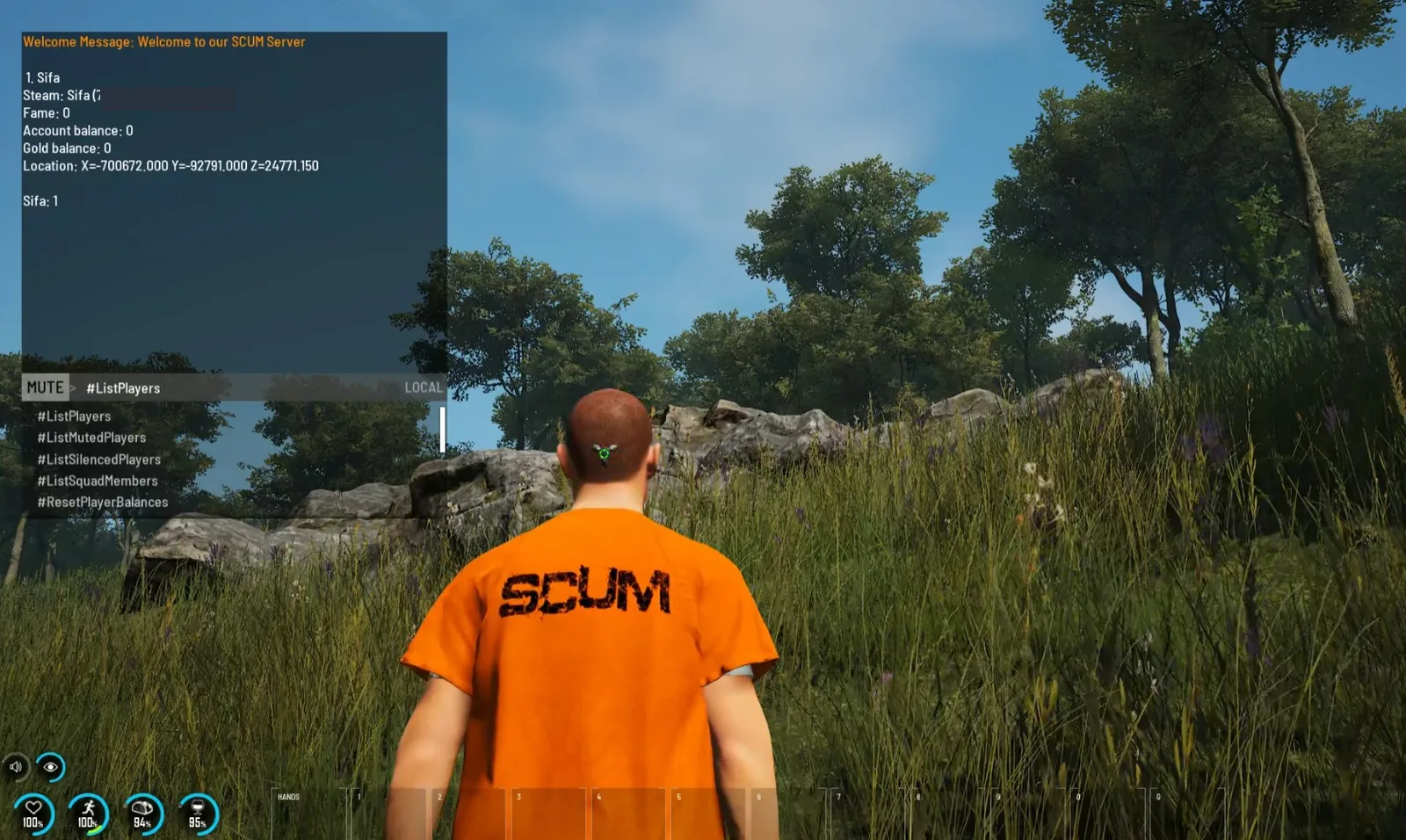
# prefix, with autocompleteThe most important commands
Overview & information
| Command | Effect |
|---|---|
#ListPlayers | Show all connected players with SteamID |
#Location {player} | Show a player’s position |
#ListSquads | List all squads |
#ListItems {search} | Search item IDs (e.g. #ListItems rifle) |
#ListZombies / #ListAnimals | List puppet/animal IDs |
#ListSpawnedVehicles | Show all vehicles with their ID |
Spawning
| Command | Effect |
|---|---|
#SpawnItem {ID} {amount} | Spawn an item — find the exact ID first via #ListItems {search} |
#SpawnVehicle {ID} | Spawn a vehicle |
#SpawnZombie {ID} {amount} | Spawn puppets |
#SpawnAnimal {ID} {amount} | Spawn animals |
#DestroyVehicle {vehicleID} | Remove a vehicle |
Teleport
| Command | Effect |
|---|---|
#Teleport {X} {Y} {Z} | Teleport to coordinates |
#TeleportTo {player} | Teleport yourself to a player |
#TeleportToMe {player} | Bring a player to you |
#TeleportToVehicle {vehicleID} | Teleport to a vehicle |
Moderation
| Command | Effect |
|---|---|
#Kick {player} | Kick a player from the server |
#Ban {player/SteamID64} | Ban a player (written to BannedUsers.ini) |
#Unban {SteamID64} | Lift a ban |
#Mute {player} / #UnMute {player} | Chat mute |
#Announce {text} | Server message to everyone |
World & players
| Command | Effect |
|---|---|
#SetTime {0–24} | Set time of day (e.g. #SetTime 8) |
#SetWeather {0–1} | Set weather (0 = clear, 1 = maximum storm) |
#SetTimeSpeed {value} | Change time lapse live |
#SetFamePoints {value} {player} | Set a player’s fame points |
#SetFamePointsToAll {value} | Set everyone’s fame points |
#SetGodMode {True/False} | Invulnerability (requires the [SetGodMode] suffix in AdminUsers.ini) |
Drone mode (spectate)
Admins switch to drone mode with Ctrl+D and fly freely across the island — great for observing and events. Inside the drone, interact with objects via TAB. There is also an in-game admin panel with real-time zone management (PvE/PvP/building zones).
What does NOT exist
Some (partly AI-generated) hosting sites list commands like #SetAdmin, #RemoveAdmin, #God, #Invisible, #Fly or #GiveItem and a file called “Admins.txt” — none of these exist in SCUM. Admin rights work exclusively via AdminUsers.ini, invulnerability via #SetGodMode.
Related guides
- Creating and connecting to your server
- Whitelist, bans & private servers — BannedUsers.ini & co. in detail
- Configuring your server
Your own SCUM server?
At 3 hours a day that is about €10.13 a month. Billed by the second: server off, costs off.
- No subscription, no minimum term
- Balance does not expire while your account exists
- Online in under 90 seconds